
Screen Recorder
Free screen Recorder use any time recorded yours shows and videos with any cost it is 100% free. Enjoy your recording
Introduction to Free Screen Recording
Screen recording has become an essential tool for various purposes, from creating tutorials to capturing important visual content for presentations. Whether you’re a teacher, gamer, or professional, knowing how to use a free screen recorder effectively can make a significant difference in the quality of your work. This article focuses on how to record your screen and integrate pictures to enhance your recordings.
Choosing the Right Free Screen Recorder
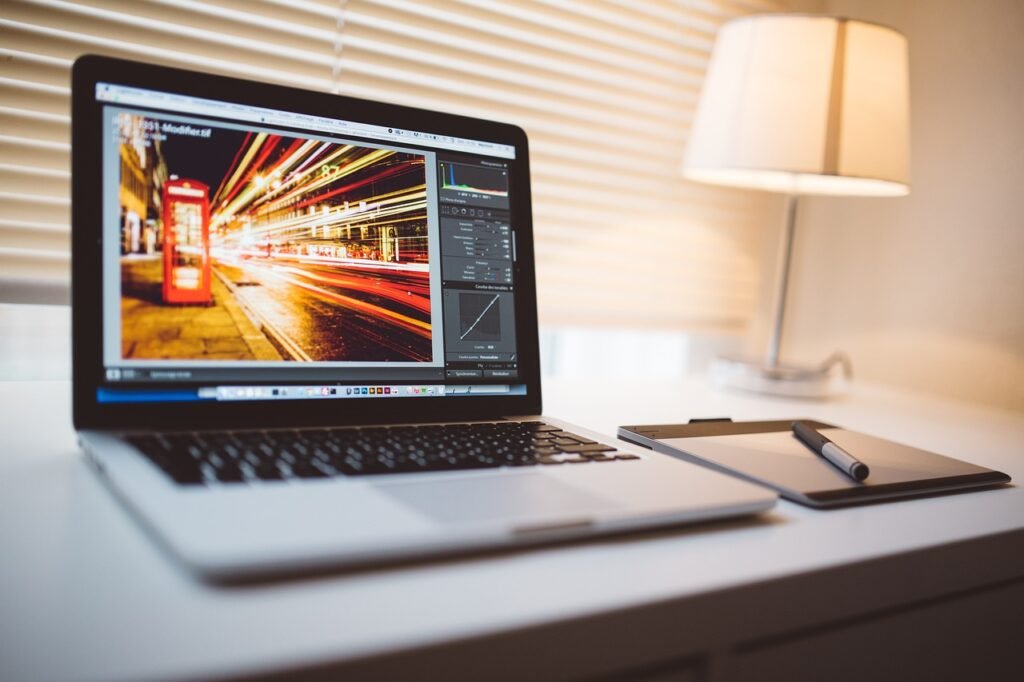
There are several screen recorders available that offer high-quality recording features. Some popular options include OBS Studio, Share, and Cam Studio. When selecting a screen recorder, it’s important to consider factors such as user-friendliness, available features, and compatibility with your operating system. One key advantage of using a free screen recorder is that you can try out different programs without any upfront cost, helping you to find the one that best meets your needs.
Steps to Record Your Screen
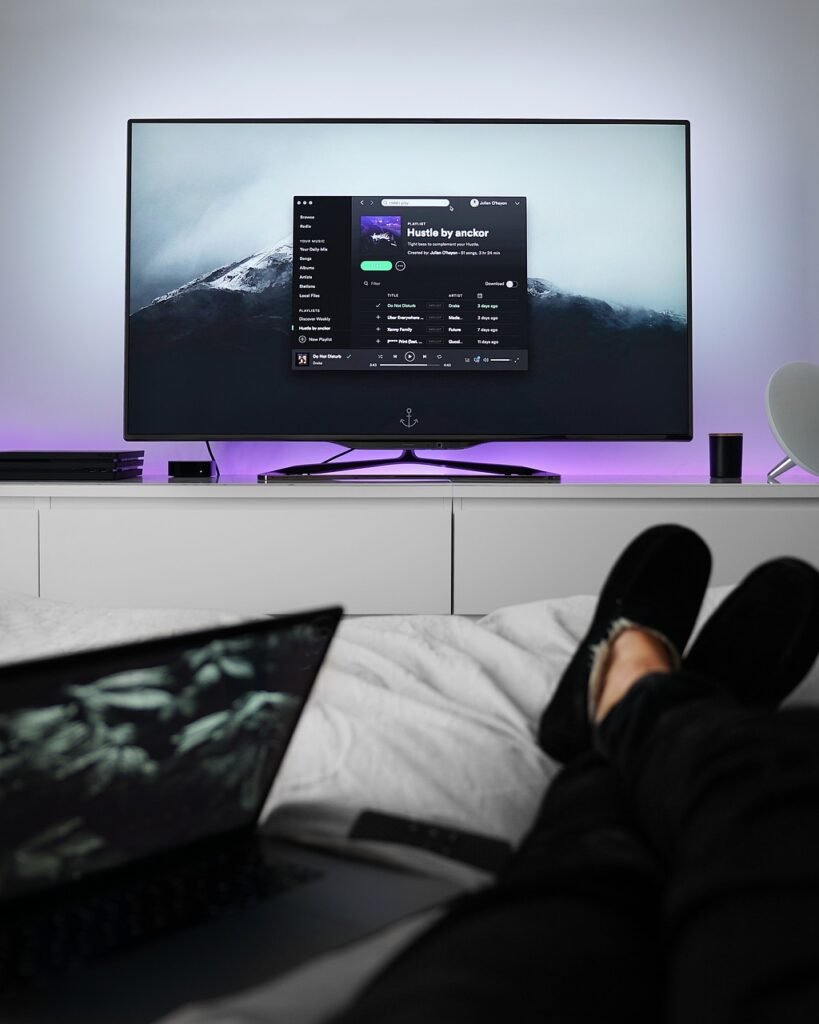
Once you have chosen a screen recorder, start recording your screen
1. Just start button to Record the screen recorder and press to stop button to save to your computer.
2. Best video quality, frame rate, and audio input to suit your needs.
3 Record the entire screen or just a portion of it.
4. Start recording Click the Record button to begin capturing your screen. You can stop the recording at any time.
5. Save it, after recording, save the file and use the editor to refine your video, add annotations, and insert pictures.
Enhancing Recordings with Pictures
Integrating pictures into your screen recordings can make them more informative and visually appealing. Most screen recorders come with built-in editing tools that allow you to add images, arrows, and text annotations to your recording. This feature is particularly useful for creating tutorials or instructional videos where visual guidance is crucial.
To insert pictures into your recording, simply use the editing tools software to upload and position the images at the desired points in your video. This can help clarify specific instructions or highlight important details that might otherwise be missed.
Conclusion
Using a free screen recorder is a cost-effective way to create high-quality screen recordings for a variety of purposes. By following the steps outlined in this article and utilizing the editing tools to add pictures, you can produce engaging and informative content that stands out. Whether for personal use or professional projects, mastering the basics of screen recording can greatly enhance the quality of your visual presentations.